BloodHound: Visualizing Active Directory Attack Paths
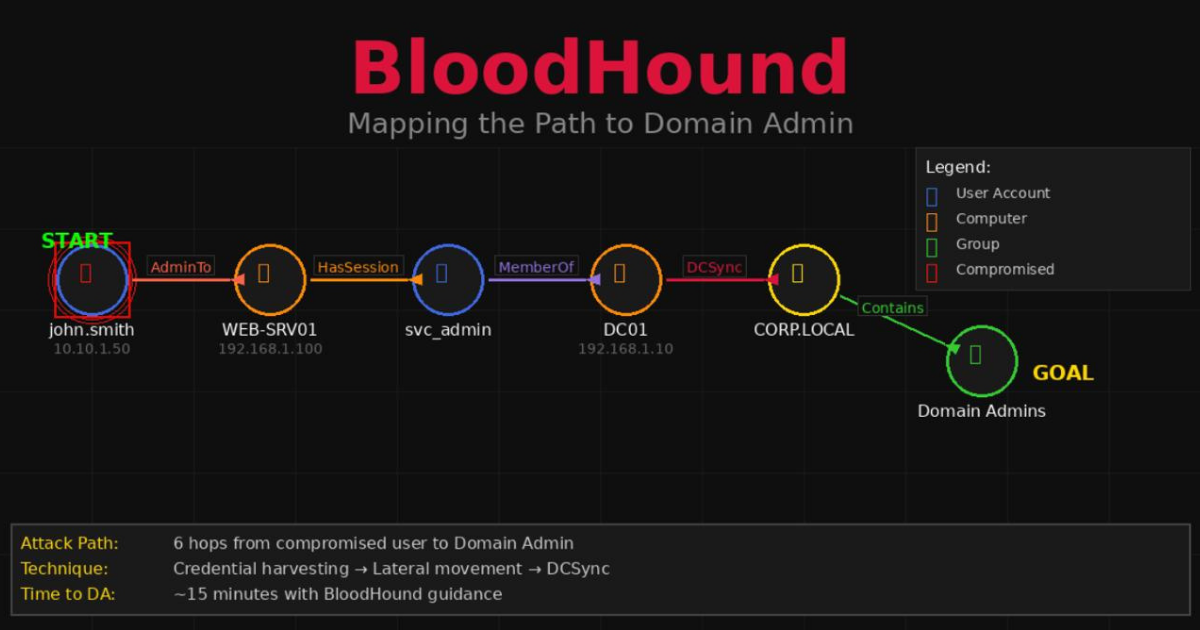
BloodHound collects information about Active Directory. User accounts. Computer accounts. Group memberships. Who can log into what. Who has admin rights where. Trust relationships. All of it.
Then it imports this data into a graph database. Each object becomes a node. Each relationship becomes an edge. The result is a visual map of the entire domain.
But the real power is in the queries. BloodHound can answer questions like:
- What’s the shortest path from this user to Domain Admin?
- Which users can RDP to which computers?
- Who has DCSync rights?
- Which accounts are Kerberoastable?
All visually. All automatically.
Components
BloodHound has two main parts:
Collector: Runs on the network. Queries Active Directory. Outputs JSON files with all the relationships.
Analyzer: Runs on your attack machine. Imports the JSON. Creates the graph. Lets you run queries.
The collector can be:
- SharpHound: C# binary for Windows
- BloodHound.py: Python script that works from Linux
The analyzer uses:
- Neo4j: Graph database backend
- BloodHound GUI: Frontend for visualization and queries
Installation
On Kali Linux:
1
2
sudo apt update
sudo apt install bloodhound neo4j -y
This installs everything you need. Neo4j is the database. BloodHound is the GUI.
Setting Up Neo4j
Neo4j needs to be configured before first use.
Start the service:
1
sudo neo4j start
Check the status:
1
sudo neo4j status
You should see:
1
Neo4j is running at pid 12345
Open your browser and go to:
1
http://localhost:7474
You’ll see the Neo4j browser interface.
First time login:
- Username:
neo4j - Password:
neo4j
You’ll immediately be forced to change the password. Pick something you’ll remember. You’ll need it to log into BloodHound.
I use bloodhound as the password. Simple and obvious.
Starting BloodHound
Open a new terminal:
1
bloodhound
The GUI will launch. You’ll see a login screen.
Login with:
- Database URL:
bolt://localhost:7687(leave default) - Username:
neo4j - Password:
bloodhound(or whatever you set)
Click Login.
Collecting Data with BloodHound.py
The Python collector is perfect when you’re attacking from Linux. You don’t need to touch the Windows machines.
Basic collection:
1
bloodhound-python -u username -p password -d domain.local -dc dc01.domain.local -c All
Let me break that down:
-u username: Valid domain username-p password: User’s password-d domain.local: Domain name-dc dc01.domain.local: Domain controller hostname or IP-c All: Collect everything
Example from a real scenario:
1
2
3
4
5
bloodhound-python -u john -p 'User1@#$%6' \
  -d child.warfare.corp \
  -dc cdc.child.warfare.corp \
  -ns 192.168.98.120 \
  -c All
The -ns flag specifies a nameserver. Use the DC’s IP if DNS isn’t working properly.
You’ll see output like:
1
2
3
4
5
6
7
8
9
10
INFO: Found AD domain: child.warfare.corp
INFO: Connecting to LDAP server: cdc.child.warfare.corp
INFO: Found 1 domains
INFO: Found 5 computers
INFO: Found 10 users
INFO: Found 15 groups
INFO: Starting computer enumeration
INFO: Querying computer: CDC.child.warfare.corp
INFO: Querying computer: MGMT.child.warfare.corp
INFO: Done in 00M 35S
The Output Files
BloodHound creates JSON files with timestamps:
1
2
3
4
5
20260103120530_computers.json
20260103120530_users.json
20260103120530_groups.json
20260103120530_domains.json
20260103120530_containers.json
These files contain all the collected data. You’ll upload these to BloodHound.
Multiple Domains
If you’re dealing with a parent-child domain structure collect from both:
1
2
3
4
5
6
7
8
9
10
11
12
13
# Child domain
bloodhound-python -u john -p 'User1@#$%6' \
  -d child.warfare.corp \
  -dc 192.168.98.120 \
  -ns 192.168.98.120 \
  -c All

# Parent domain
bloodhound-python -u corpmngr -p 'User4&*&*' \
  -d warfare.corp \
  -dc 192.168.98.2 \
  -ns 192.168.98.2 \
  -c All
This gives you the complete picture.
Uploading Data to BloodHound
In the BloodHound GUI:
- Click the Upload Data button (right side, up arrow icon)
- Select all the JSON files
- Click Open
You’ll see progress:
1
2
3
4
5
Parsing JSON files...
Processing users...
Processing groups...
Processing computers...
Done!
The data is now in the database.
Marking Owned Principals
This is important. Tell BloodHound which accounts you’ve already compromised.
To mark a user as owned:
- Click the Search icon (top left, magnifying glass)
- Type the username (e.g.,
john) - Click on
JOHN@CHILD.WARFARE.CORPin the results - Right-click the node in the graph
- Select Mark User as Owned
The node turns red with a skull icon. This indicates you control this account.
Do this for:
- All compromised user accounts
- All compromised computer accounts
- Any group you have control over
Running Queries
Click the Analysis tab (hamburger menu icon, top left).
You’ll see pre-built queries:
Pathfinding Queries:
- Find Shortest Paths to Domain Admins
- Find Shortest Paths to Domain Admins from Owned Principals (most useful)
- Find Shortest Paths to High Value Targets
Domain Information:
- Find all Domain Admins
- Find Computers with Unsupported Operating Systems
Dangerous Privileges:
- Find Principals with DCSync Rights
- Find Computers where Domain Users are Local Admin
- Find Computers with Unconstrained Delegation
Kerberos Attacks:
- List all Kerberoastable Accounts
- Find Kerberoastable Members of High Value Groups
- Find AS-REP Roastable Users
Sessions:
- Find Computers where Domain Users can Read LAPS Password
- Find Computers where Domain Admins are logged in
Understanding the Graph
When you run a query you get a visual graph.
Node colors:
- 🔴 Red with skull: Owned by you
- 🔵 Blue: Users
- 🟢 Green: Groups
- 🟠 Orange: Computers
- 🟡 Yellow: Domains
Edge types (arrows):
- MemberOf: User belongs to group
- AdminTo: Has local admin rights
- HasSession: User is logged in
- CanRDP: Can remote desktop
- CanPSRemote: Can use PowerShell remoting
- GenericAll: Full control over object
- WriteDacl: Can modify permissions
- DCSync: Can replicate domain credentials
Example: Finding Your Path
Let’s say you compromised the user john. You want Domain Admin.
- Mark
johnas owned - Run “Shortest Paths to Domain Admins from Owned Principals”
BloodHound might show:
1
2
3
4
5
6
7
8
9
10
11
12
13
JOHN@CHILD.WARFARE.CORP (Owned)
    ↓ AdminTo
MGMT.CHILD.WARFARE.CORP
    ↓ HasSession
CORPMNGR@CHILD.WARFARE.CORP
    ↓ AdminTo
CDC.CHILD.WARFARE.CORP
    ↓ DCSync
CHILD.WARFARE.CORP
    ↓ TrustedBy
WARFARE.CORP
    ↓ Contains
DOMAIN ADMINS@WARFARE.CORP
This tells you:
- John is admin on MGMT
- Corpmngr has a session on MGMT (dump credentials there)
- Corpmngr is admin on CDC (child domain controller)
- From CDC you can DCSync
- Child domain trusts parent domain
- You can pivot to become Domain Admin of parent
That’s your attack path. Follow it step by step.
Getting Help on Edges
Right-click any edge in the graph. Select Help.
You’ll get detailed information:
- General Info: What this relationship means
- Windows Abuse: How to exploit it from Windows
- Linux Abuse: How to exploit it from Linux
- Opsec Considerations: Detection risks
- References: External resources
For example. Click on a HasSession edge:
1
2
3
4
5
6
7
8
9
10
11
12
13
Abuse Info:

When a user has an active session on a computer you control you can:

1. Dump credentials using Mimikatz
2. Extract LSA secrets with secretsdump
3. Wait for the user to authenticate

From Linux:
crackmapexec smb COMPUTER -u user -p pass --lsa

From Windows:
Invoke-Mimikatz -Command "sekurlsa::logonpasswords"
This is incredibly helpful. BloodHound not only shows you the path but tells you how to exploit each step.
Custom Queries
The pre-built queries are good but sometimes you want something specific.
Click the search icon at the bottom (looks like three horizontal lines).
You can write custom Cypher queries:
1
2
3
4
MATCH (n:User {name:"JOHN@CHILD.WARFARE.CORP"}),
      (m:Group {name:"DOMAIN ADMINS@WARFARE.CORP"}),
      p=shortestPath((n)-[*1..]->(m))
RETURN p
This finds the shortest path from john to Domain Admins.
Another useful query to find all computers where a user is admin:
1
2
MATCH (u:User {name:"JOHN@CHILD.WARFARE.CORP"})-[r:AdminTo]->(c:Computer)
RETURN u,r,c
Common Issues
No Data Shows Up
Check:
- Did the collection complete successfully?
- Did you upload ALL the JSON files?
- Did you select the right domain when searching?
Try searching for a known object like “Domain Admins”.
Can’t Connect to Neo4j
Make sure Neo4j is running:
1
sudo neo4j status
If it’s not running:
1
sudo neo4j start
Check you’re using the right password. The default is neo4j but you changed it during setup.
Collection Fails
Common causes:
Invalid credentials: Double-check username and password
Can’t reach DC: Make sure you can ping the domain controller
DNS issues: Use IP address instead of hostname. Add -ns IP flag.
Firewall: LDAP (389) and SMB (445) need to be accessible
Graph is Too Cluttered
For large environments the graph can be overwhelming.
Tips:
- Use specific queries instead of “Find All”
- Set owned principals to narrow down paths
- Use the Settings (gear icon) to adjust node spacing
- Export to JSON and analyze programmatically
When BloodHound is Most Useful
Large environments: Hundreds of users and computers. Manual enumeration would take days.
Complex permissions: Nested groups. Delegation across OUs. Who has rights to what isn’t obvious.
Multiple domains: Parent-child relationships. Cross-forest trusts.
Finding alternate paths: Primary path is blocked? BloodHound shows you other routes.
Client reporting: Visual graphs are easier to explain than text.
When You Might Skip It
Small environments: Three computers and five users? You can map that manually.
Time-limited assessments: Collection can be noisy. Lots of LDAP queries.
Already have a clear path: If you know exactly what to do BloodHound doesn’t add much.
Isolated networks: If you can’t get the JSON files out BloodHound can’t help.
Detection Risks
BloodHound collection generates a lot of LDAP traffic. Blue teams can detect it.
Signs:
- Massive LDAP queries from a single source
- Queries for all users, all groups, all computers in short time
- Session enumeration across many machines
To be stealthier:
- Limit collection scope with
-cflag - Space out collection over time
- Use compromised admin account (less suspicious)
- Collect during business hours (blends in)
Quick Reference
1
2
3
4
5
6
7
8
9
10
11
12
13
14
15
16
17
18
19
20
21
22
23
24
# Install
sudo apt install bloodhound neo4j -y

# Start Neo4j
sudo neo4j start

# Configure (first time only)
# Visit http://localhost:7474
# Login: neo4j/neo4j
# Set new password

# Start BloodHound
bloodhound

# Collect data
bloodhound-python -u user -p pass -d domain.local -dc dc01 -c All

# For multiple domains
bloodhound-python -u user -p pass -d child.domain.local -dc cdc01 -c All
bloodhound-python -u user -p pass -d parent.local -dc dc01 -c All

# Upload JSON files via GUI
# Mark owned principals
# Run queries from Analysis tab
Final Thoughts
BloodHound transformed how I approach Active Directory. Before it I would enumerate manually. Query users. Check group memberships. Try to remember who has admin where. It was slow and error-prone.
Now I collect with BloodHound first. Get the complete picture. See all possible paths. Then execute with confidence.
The visual representation is what makes it click. Seeing the graph makes relationships obvious. That path from low-privilege user to Domain Admin that would have taken hours to find manually? BloodHound shows it in seconds.
It’s not perfect. Collection can be noisy. Large environments produce messy graphs. But the value it provides far outweighs these limitations.
If you’re working with Active Directory get comfortable with BloodHound. It’s not just another tool. It’s a different way of understanding and attacking domains.